
What Are Intense Templates?
Intense templates allow you to override the layout of a shortcode. If you don’t like the way the shortcode looks, you can change the html markup to suit your needs. Not all shortcodes are templated but most of the shortcodes with a lot of html are. If you are happy with the default look, there is no need to change the templates.Where Are They?
Intense templates can exist in three different locations:- The Intense plugin – in the
templatesfolder within the plugin’s main folder. THESE SHOULD NEVER BE CHANGED - The theme – in the
intense_templatesfolder within the theme’s main folder. - The child theme – in the
intense_templatesfolder within the child theme’s main folder.
The plugin will look for templates in the following order: the child theme, the theme, the plugin.
The download for this plugin includes a folder intense_templates which is a copy of the default templates found in the plugin folder.
How Do I Change Them?
To change the templates, copy the folder from the download to your child theme’s or theme’s main folder. At that point, you can edit the files and the plugin will use your edited version instead of the default version.Can I Add My Own?
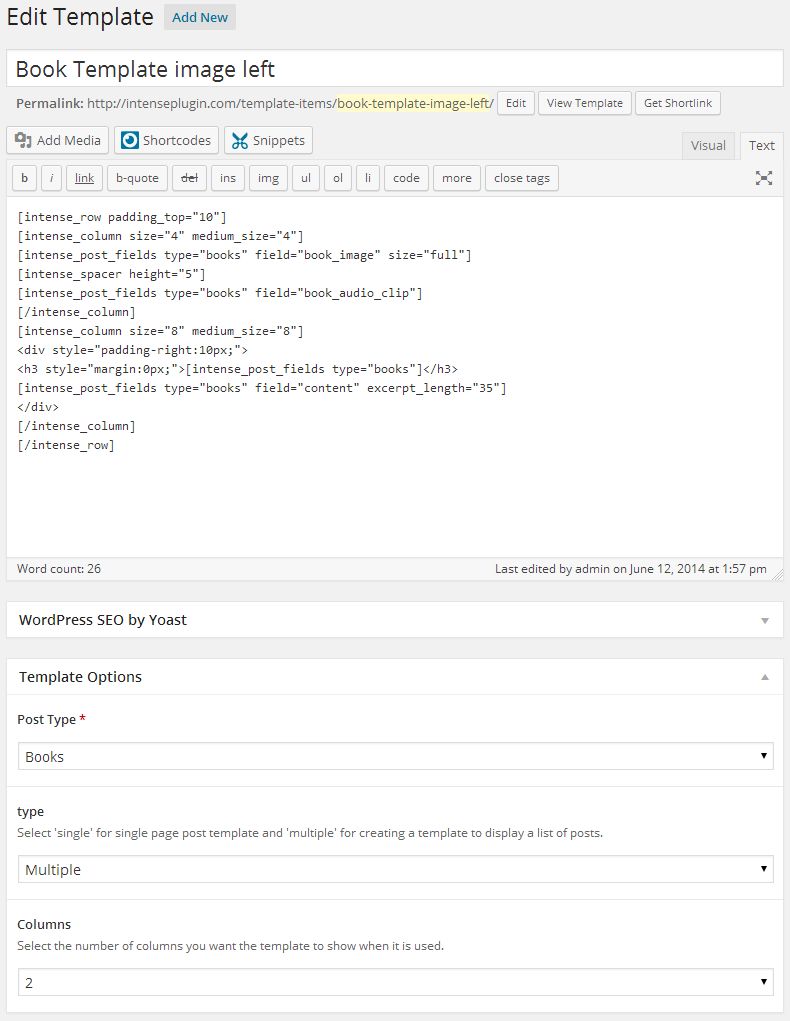
One way to add templates is through the templates admin page. You can add templates like you would any regular post or page. To do this, you will need to use the Post Fields shortcode. This shortcode allows you to add the fields to be displayed in the template. When the template is run, the shortcodes will know to find the appropriate fields for each post.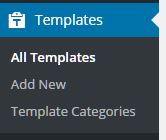 *Click the above image to view an example template setup to be used for the Book Custom Post Type.
You can add your own template file within the template folders. The file should include a header in the following format:
<?php
/*
Intense Template Name: [YOUR TEMPLATE NAME HERE]
*/
Templates Custom Post Type
If you are looking for information on the Templates Custom Post Type, please look in the Custom Post Types or click here.What If I Need to Upgrade My Theme?
When you upgrade the Intensity theme, it is best to backup the template folder to a safe location. After upgrading, put your template files back into the theme from your backup. We strongly suggest using a child theme so that you do not have to worry about the templates folder being overwritten and your changes being lost.Which Templates Are Available By Default?
Nearly all of the Custom Post Types that are included in Intense have templates available by default. You can also template metadata (author, date, and comments shown for posts in intense post shortcodes), pricing tables, recent posts, and testimonies to name a few.Intensity includes a bunch of additional templates for the above mentioned Custom Post Types as well as a number of additional template-able items. These additional items include the header, footer, title bar, search, secondary header, and secondary footer. Intensity includes a number of templates for these items already, but we make it easy for you to add your own, or modify one of our existing ones.
Some Additional Information About Templates
[intense_custom_post] (including [intense_blog] & [intense_portfolio])The templates for this shortcode are found under the custom-post directory. Standard post templates are under the post directory within the custom-post directory. Portfolio templates are found under the intense_portfolio directory. If you want to add your own templates for custom post types, create a directory under the custom-post directory with a name that matches the custom post type name. If there aren’t templates for a given custom post type, the default post templates will be used. The list below shows only some of the included templates that are available with the Intensity theme and the Intense plugin.
NOTE: Timeline templates must have timeline in their file name.
templates
|-custom-post
|–intense_portfolio
|—–four_text.php
|—–one.php
|—–one_text_left.php
|—–one_text_right.php
|—–three_text.php
|—–timeline.php
|—–timeline_text_left.php
|—–timeline_text_only.php
|—–timeline_text_right.php
|—–two_text.php
|–post
|—–four.php
|—–four_text.php
|—–one.php
|—–one_text_left.php
|—–one_text_right.php
|—–three.php
|—–three_text.php
|—–timeline.php
|—–timeline_text_left.php
|—–timeline_text_only.php
|—–timeline_text_right.php
|—–two.php
|—–two_text.php
|–some_other_custom_post_type
|—–your_own_template.php
The following data is available to the custom post templates:
global $post, $intense_custom_post;
———
$intense_custom_post
(
    [plugin_layout_style] => the padding and margin styles defined in the plugin options
    [cancel_plugin_layout_style] => 0 margin and padding used to cancel out plugin layout style
    [template] => template name
    [categories] => comma separated list of categories
    [post_type] => the post type to show
    [taxonomy] => the taxonomy of the posts
    [posts_per_page] => number of posts to show on a single page
    [image_shadow] => shadow to show on the post featured image
    [hover_effect] => hover effect of the featured image
    [show_all] => show all posts
    [show_filter] => show filter at top of post list
    [show_images] => show featured images
    [show_missing_image] => show missing image if no featured image has been set
    [timeline_mode] => timeline mode: center, left, right, dual
    [timeline_order] => order to the timeline events: asc, desc
    [timeline_showyear] => show the year separator
    [timeline_readmore] => text for read more link
    [timeline_color] => color of the timeline event
    [filter_easing] => easing when items filtered
    [filter_effects] => easing effect for filtered items
    [hover_effect_color] => color for image hover
    [hover_effect_opacity] => opacity for image hover
    [sticky_mode] => how to show sticky posts: top, inline, ignore
    [post_image_shadow] => defined in meta box
    [hovereffect] => defined in meta box
    [hovereffectcolor] => defined in meta box
    [hovereffectopacity] => defined in meta box
    [index] => index number of post in loop
    [edit_link] =>  html markup for post edit link
    [post_classes] => extra classes used for filtering and item setup
    [rtl] => rtl mode setting
)
General
Import
Export
Intensity | Responsive Multi-Purpose Theme – v1.2.3 (September 11, 2017)
* Added font size and hover color options for social media links in header and footer
* Added Open Graph meta tags for pages and posts
* Fixed a conflict with the preloader and the Autoptomize plugin
* Updated WooCommerce template files
Intensity | Responsive Multi-Purpose Theme – v1.2.2 (September 11, 2017)
* Updated Intense to version 2.9.0
* Updated Visual Composer to version 5.2.1
* Updated LayerSlider WP to version 6.5.8
* Updated Slider Revolution to version 5.4.5.2
* Fixed a typo in the branding settings
* Fixed compatibility issues with WooCommerce 3.0.9
Intensity | Responsive Multi-Purpose Theme – v1.2.1 (May 25, 2017)
* Fixed showing of nested categories in the breadcrumb
* Updated Intense to version 2.8.9
* Updated LayerSlider WP to version 6.5.1
* Updated Slider Revolution to version 5.4.5.1
Intensity | Responsive Multi-Purpose Theme – v1.2.0 (April 25, 2017)
* Updated Slider Revolution to version 5.4.3
Intensity | Responsive Multi-Purpose Theme – v1.1.9 (April 18, 2017)
* Updated Intense to version 2.8.8
* Updated LayerSlider WP to version 6.3.0
* Updated Slider Revolution to version 5.4.1
* Updated Visual Composer to version 5.1.1
* Fixed compatibility issues with WooCommerce 3.0+
Intensity | Responsive Multi-Purpose Theme – v1.1.8 (Feb 7, 2017)
* Updated Intense to version 2.8.7
* Updated LayerSlider WP to version 6.1.0
* Updated Slider Revolution to version 5.3.1.5
* Fixed PHP 7.1 related warnings
* Fixed an issue with the one column team template found in the agency child theme
* Fixed an issue with the two column text only content template found in the political child theme
Intensity | Responsive Multi-Purpose Theme – v1.1.7 (December 6, 2016)
* Updated Advanced Custom Fields (ACF) to the latest version (5.5.1)
* Updated Intense to version 2.8.5
* Updated LayerSlider WP to version 6.0.6
* Updated Slider Revolution to version 5.3.1
* Updated Visual Composer to version 5.0.1
Intensity | Responsive Multi-Purpose Theme – v1.1.6 (November 10, 2016)
* Fixed content section breakout issues with parallax background images
* Updated Advanced Custom Fields (ACF) to the latest version (5.4.8)
* Updated Intense to version 2.8.4
* Updated LayerSlider WP to version 6.0.5
Intensity | Responsive Multi-Purpose Theme – v1.1.5 (November 9, 2016)
* Fixed CSS link for dynamically created CSS files
* Updated LayerSlider WP to version 6.0.3
* Updated Slider Revolution to version 5.3.0.2
Intensity | Responsive Multi-Purpose Theme – v1.1.4 (October 14, 2016)
* Fixed an issue with the way preloader code handles download links
* Updated Intense to version 2.8.2
* Updated Redux Framework to the latest version (3.6.1.3)
Intensity | Responsive Multi-Purpose Theme – v1.1.3 (September 15, 2016)
* Fixed preloader so it doesn’t animate when triggered from the single attachment page or
when downloading a file
* Fixed some margin issues that caused horizontal scrollbars
* Fixed default logo url to use the website’s url if not set.
This also fixes an issue with qtranslate reverting to default language.
* Fixed a compatibility issue with upcoming WordPress version 4.7
* Updated WooCommerce templates
* Updated Intense to version 2.8.1
* Updated Visual Composer to version 4.12.1
Intensity | Responsive Multi-Purpose Theme – v1.1.2 (July 8, 2016)
* Updated LayerSlider WP to version 5.6.9
* Updated Slider Revolution to version 5.2.6
* Updated Visual Composer to version 4.12
* Updated Intense to version 2.8.0
* The above plugins were somehow not updated during packaging of version 1.1.1
Intensity | Responsive Multi-Purpose Theme – v1.1.1 (July 6, 2016)
* Added option to show/hide social links on post pages
* Added Alt Text option for the site logo image
* Added Background Color, Border, and Border Radius options for Secondary level menu
* Updated LayerSlider WP to version 5.6.9
* Updated Slider Revolution to version 5.2.6
* Updated Visual Composer to version 4.12
* Updated Intense to version 2.8.0
* Updated TGM Plugin Activation class to version 2.6.1
Intensity | Responsive Multi-Purpose Theme – v1.1.0 (May 31, 2016)
* Fixed an issue in Intense that was preventing installing of demos
* Updated Redux Framework to the latest version (3.6.0.5)
* Updated Slider Revolution to version 5.2.5.3
* Updated Intense to version 2.7.9
Intensity | Responsive Multi-Purpose Theme – v1.0.9 (May 26, 2016)
* Improved demo installation by separating out steps, improving feedback,
preventing the chance of conflicts with plugins, and adding the ability
to manually FTP upload the demo zip file to the server for installation
* Increased request timeouts for demo import
* Improved overall performance of admin screens
* Fixed issue with saving of template files created with the Templates CPT
* Updated LayerSlider WP to version 5.6.8
* Updated Slider Revolution to version 5.2.5.1
* Updated Intense to version 2.7.8
Intensity | Responsive Multi-Purpose Theme – v1.0.8 (May 3, 2016)
* Fixed broken demo import
* Removed global word-break styling
* Updated LayerSlider WP to version 5.6.6
* Improved overall performance of admin screens
Intensity | Responsive Multi-Purpose Theme – v1.0.7 (April 26, 2016)
* Updated Slider Revolution to version 5.2.5
* Updated Redux Framework to the latest version (3.6.0.1)
* Added child theme’s style.css as another way to add custom CSS
* Fixed menu styling and search button for page/post level saved header menus
* Improved overall performance
Intensity | Responsive Multi-Purpose Theme – v1.0.6 (April 13, 2016)
* Added Welcome tab to theme options to show links and plugins
* Added theme registration to receive automatic updates, support registration, forum access and more
* Added automatic updates. Users will need to manually update to version 1.0.6.
* Added new “Left menu without branding” header template
* Fixed “Branding on left with menu below” header template
Intensity | Responsive Multi-Purpose Theme – v1.0.5 (April 5, 2016)
* Fixed theme check issues
* Fixed bug in several templates when Intense isn’t enabled
* Fixed missing header animation option warning
* Removed unused intensity_after_closing_body action
* Removed Redux notices
* Removed forced activation/deactivation from TGMPA plugins
* Replaced dirname( __FILE__ ) with get_template_directory() in included plugins
Intensity | Responsive Multi-Purpose Theme – v1.0.4 (March 31, 2016)
* Moved wp_footer to just before closing body tag
* Changed site icon check from WP version to wp_site_icon function check
* Removed functions from header and footer templates
* Prefixed functions, actions, and more that weren’t prefixed
* Fixed data validation issues where dynamic data was not properly escaped
* Fixed divide-by-zero issue in multicolumn widget templates
* Replaced system calls for reading/writing files with WP_Filesystem methods
* Consolidated Intro Effect single post templates to reduce space
Intensity | Responsive Multi-Purpose Theme – v1.0.3 (March 22, 2016)
* Fixed importing of custom post types and saved templates
* Updated theme translatable strings so they are now properly escaped
* Removed use of basename() and dirname() functions
Intensity | Responsive Multi-Purpose Theme – v1.0.2 (March 14, 2016)
* Added support for full width mega menus
* Fixed main translation file changing it from .po/.mo to .pot version
* Removed SVG upload capability because it is a potential security risk
* Removed inline styles across templates and theme files
* Refactored code to remove use of global variables
* Refactored shrink header mode
* Omit closing PHP tag on some pages to avoid “Headers already sent” issues
Intensity | Responsive Multi-Purpose Theme – v1.0.1 (March 9, 2016)
* Added support for Easy Digital Downloads
* Added support for Gravity Forms
* Added support for BuddyPress
* Added ‘nogutter’ class to a couple post fullwidth templates
* Added Agency child theme
* Added Brewery child theme
* Added ability to use Template CPT to create Primary Footer and Secondary Footer templates
* Fixed circle image center alignment on one of the author templates
* Fixed a few font size issues
Intensity | Responsive Multi-Purpose Theme – v1.0.0 (February 20, 2016)
* Initial Release
If the custom post type that you are looking for does not show in the WordPress admin menu, the custom post type may not be active. If this is the case, go into the Intense admin options (Settings->Intense), then to the Custom Post Types tab and make sure that the custom post types that you want to be active are properly checked in the “Active Custom Post Types” list and then save the options.
The list of the included Custom Post Types is to the right (or below on mobile devices). If you want to jump to the screenshot and metabox options information for one of the custom post types, simply click on the name.
List of CPT’s (click to view)
Books Custom Post Type
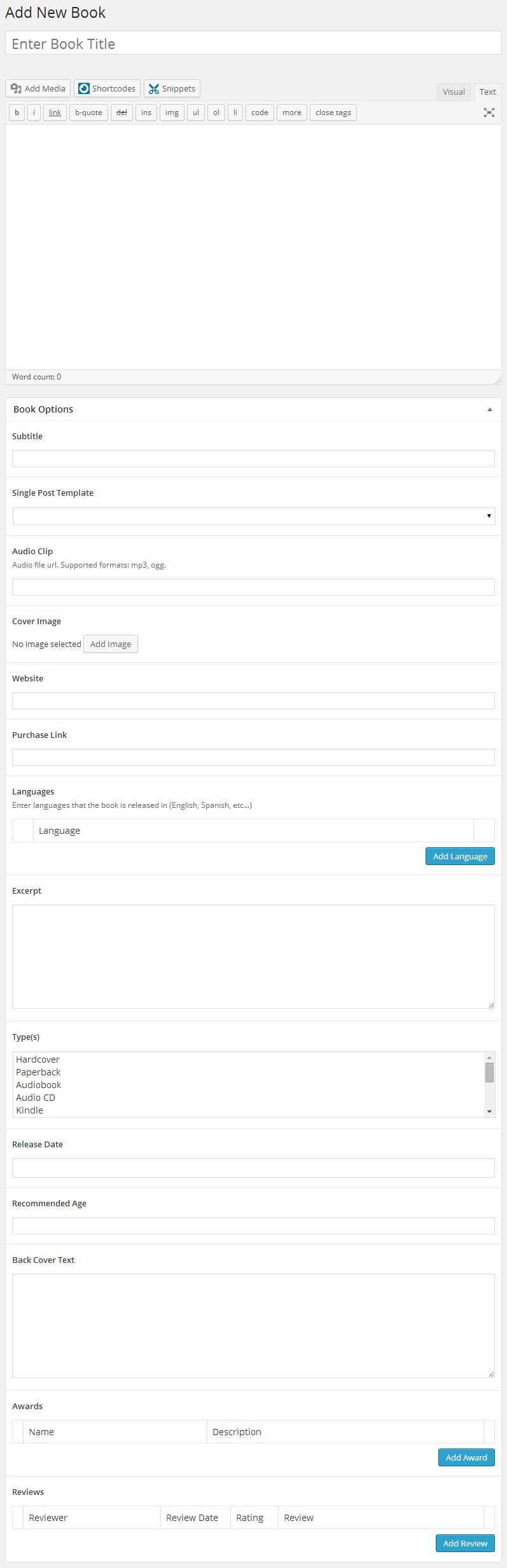
Book Options
Clients Custom Post Type
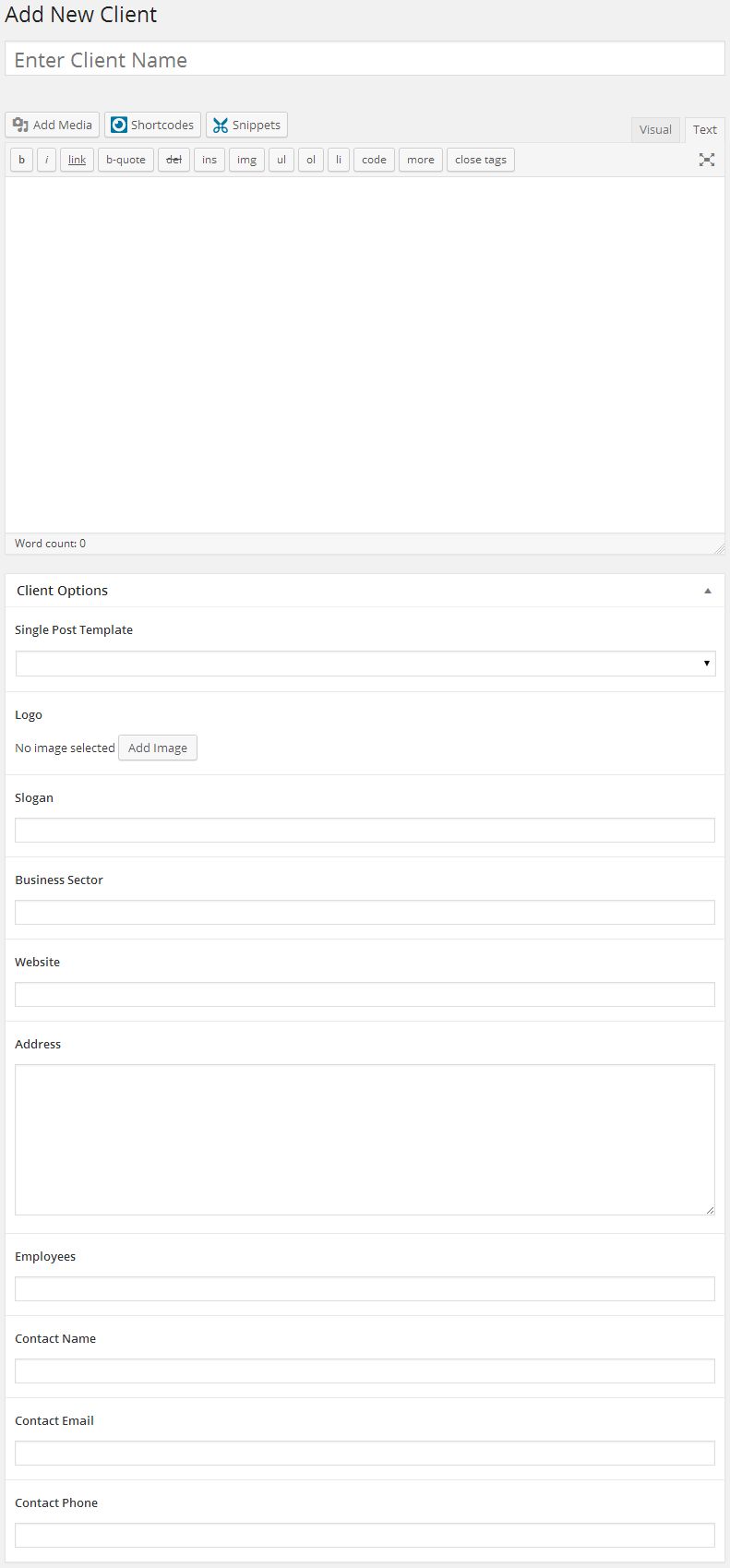
Client Options
Coupons Custom Post Type
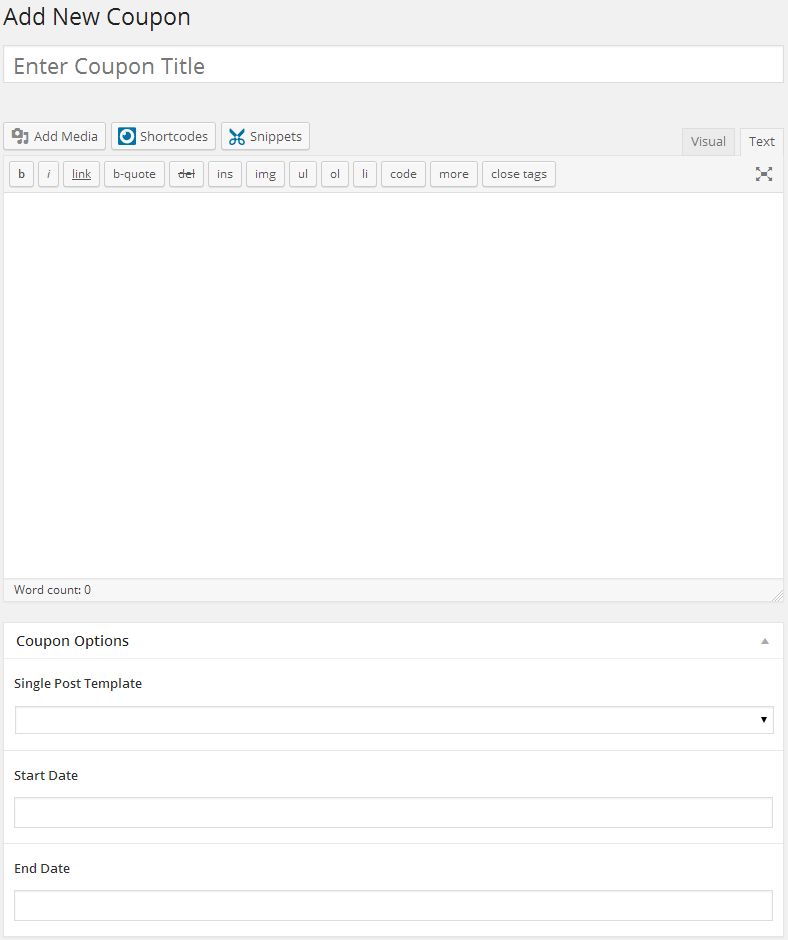
Coupon Options
Events Custom Post Type
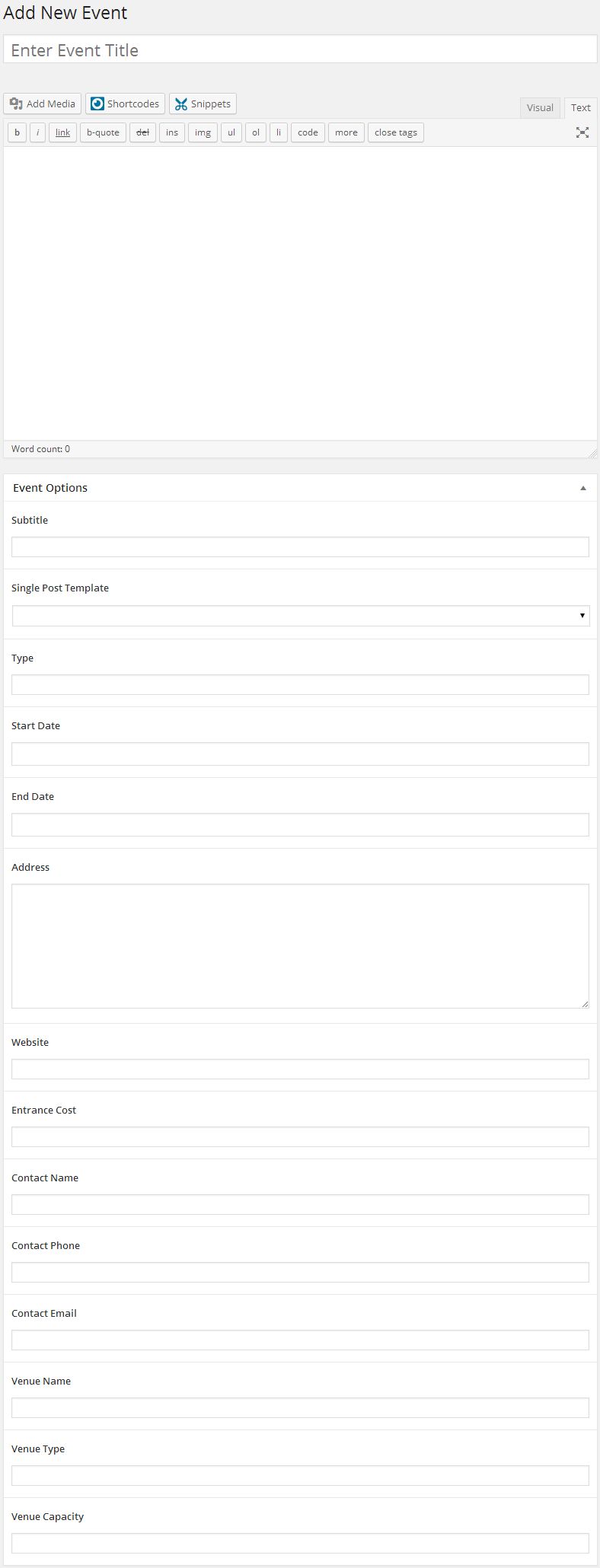
Event Options
FAQ Custom Post Type
FAQ Options
Jobs Custom Post Type
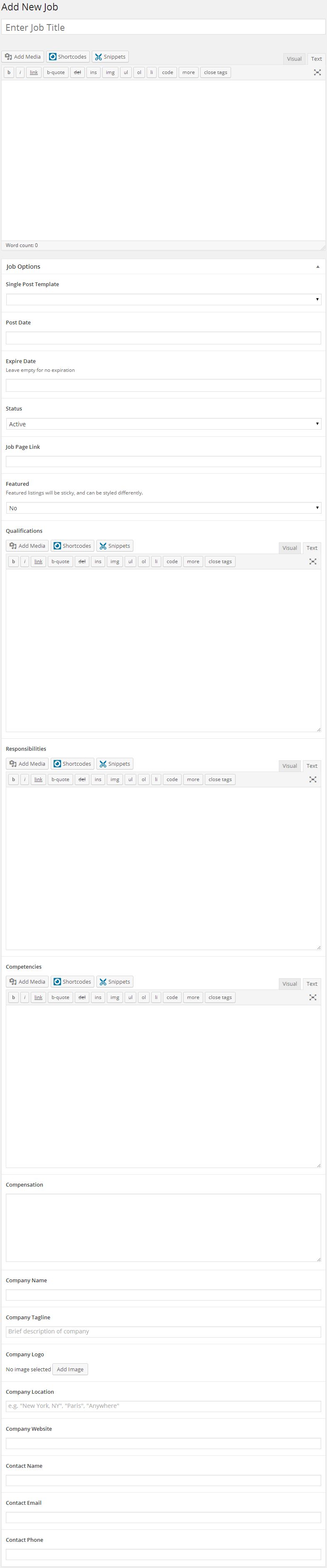
Job Options
Locations Custom Post Type
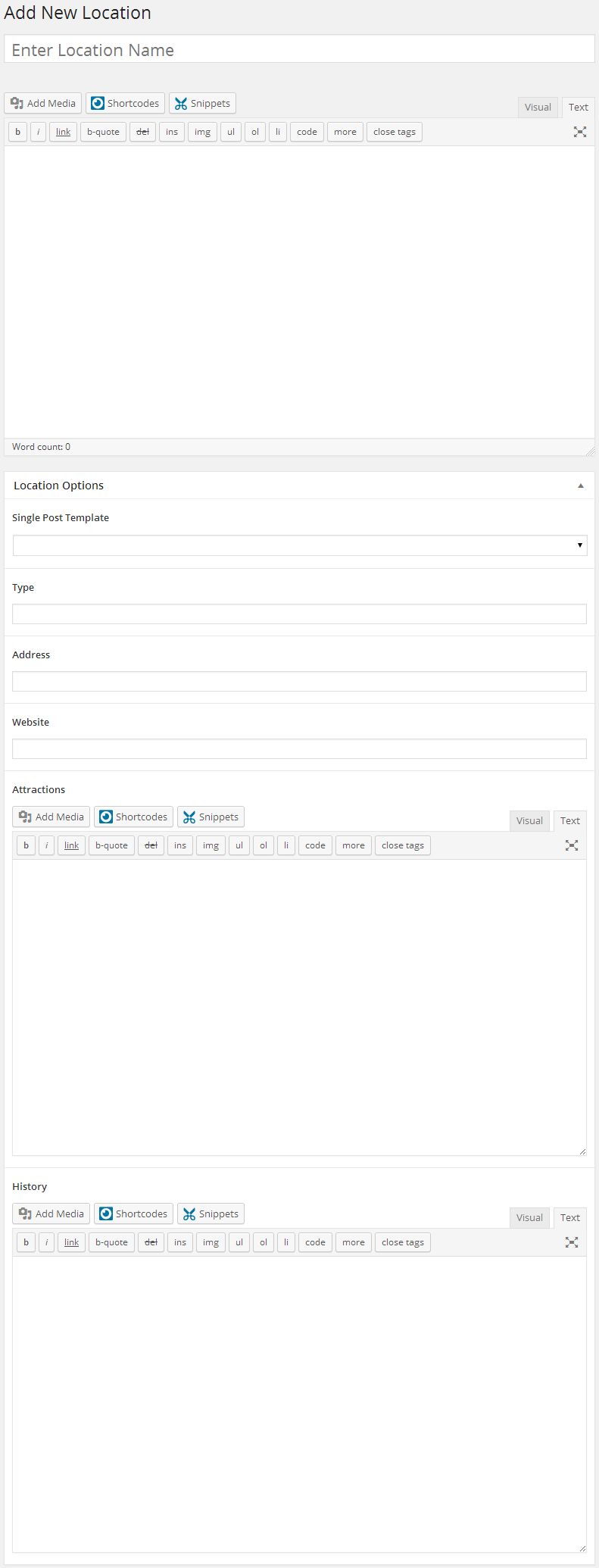
Location Options
Movies Custom Post Type
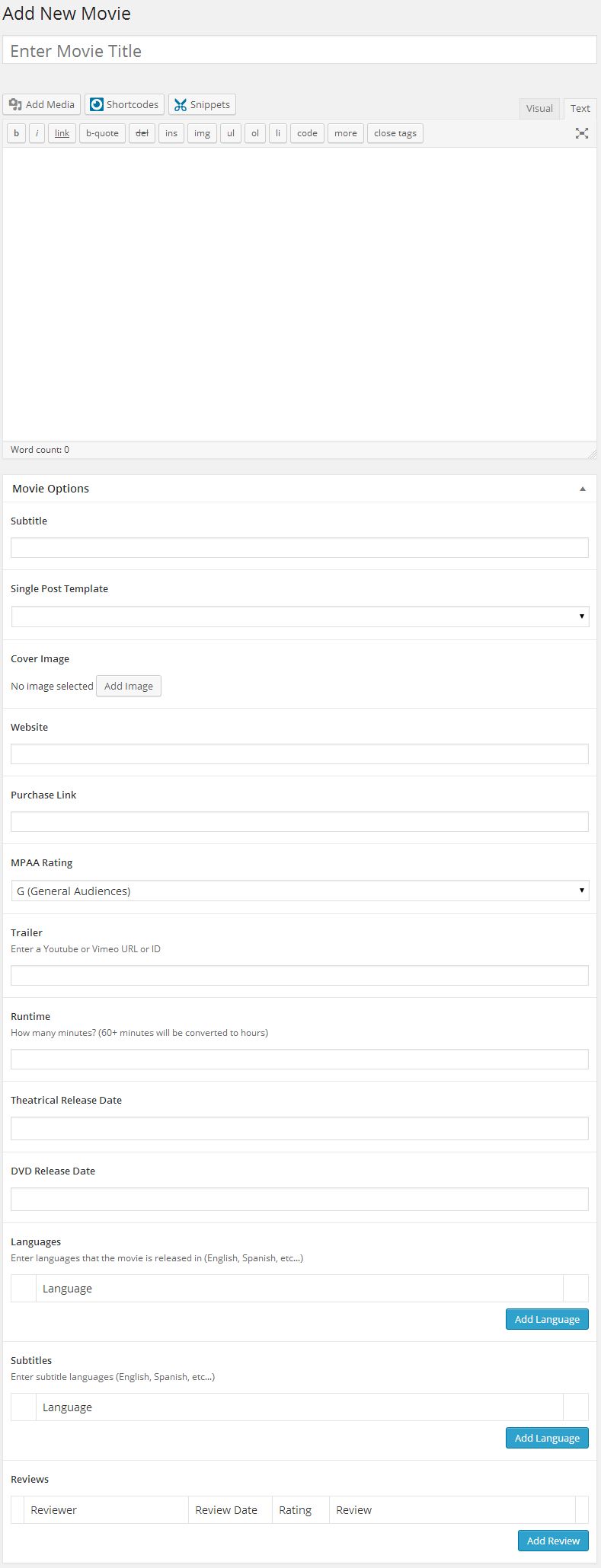
Movie Options
Music Custom Post Type
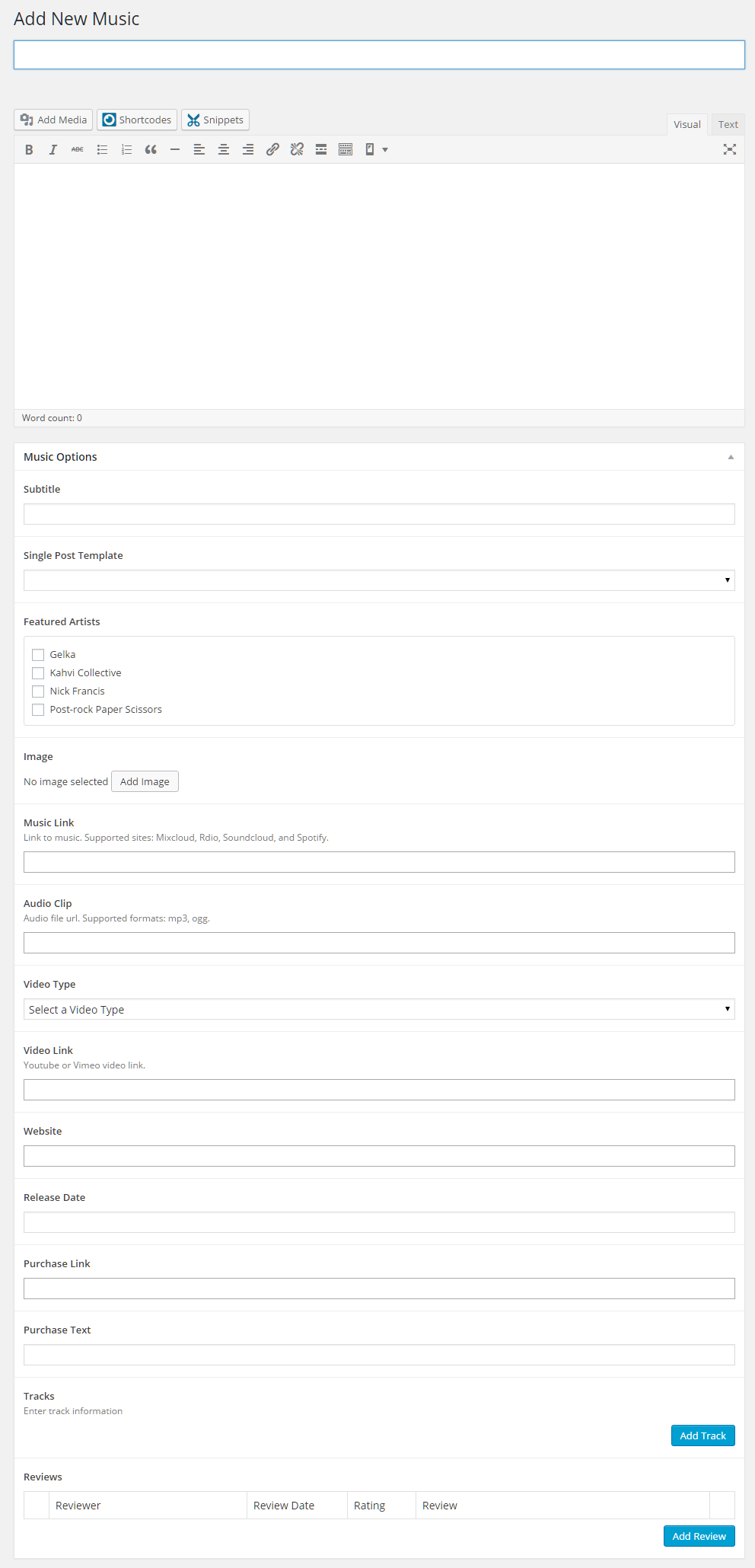
Music Options
Tracks Options
News Custom Post Type
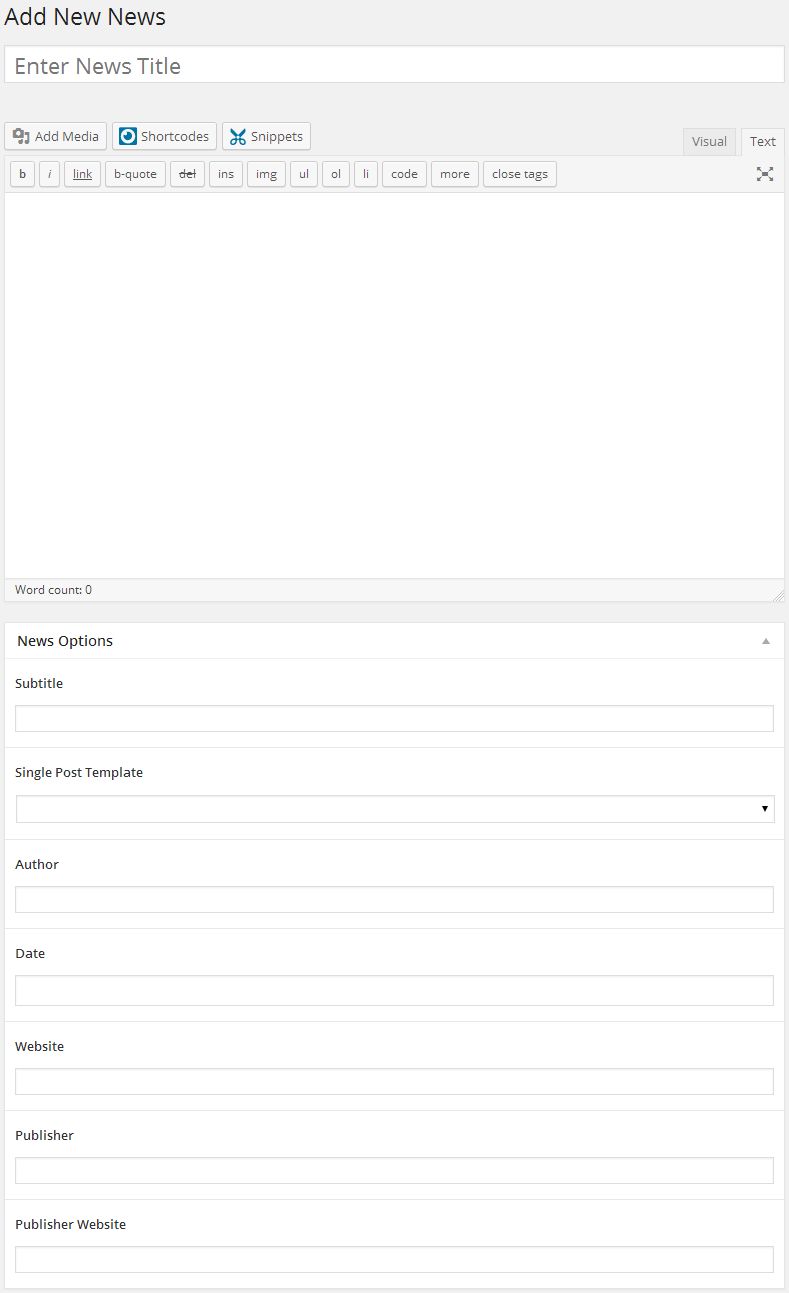
News Options
Portfolio Custom Post Type
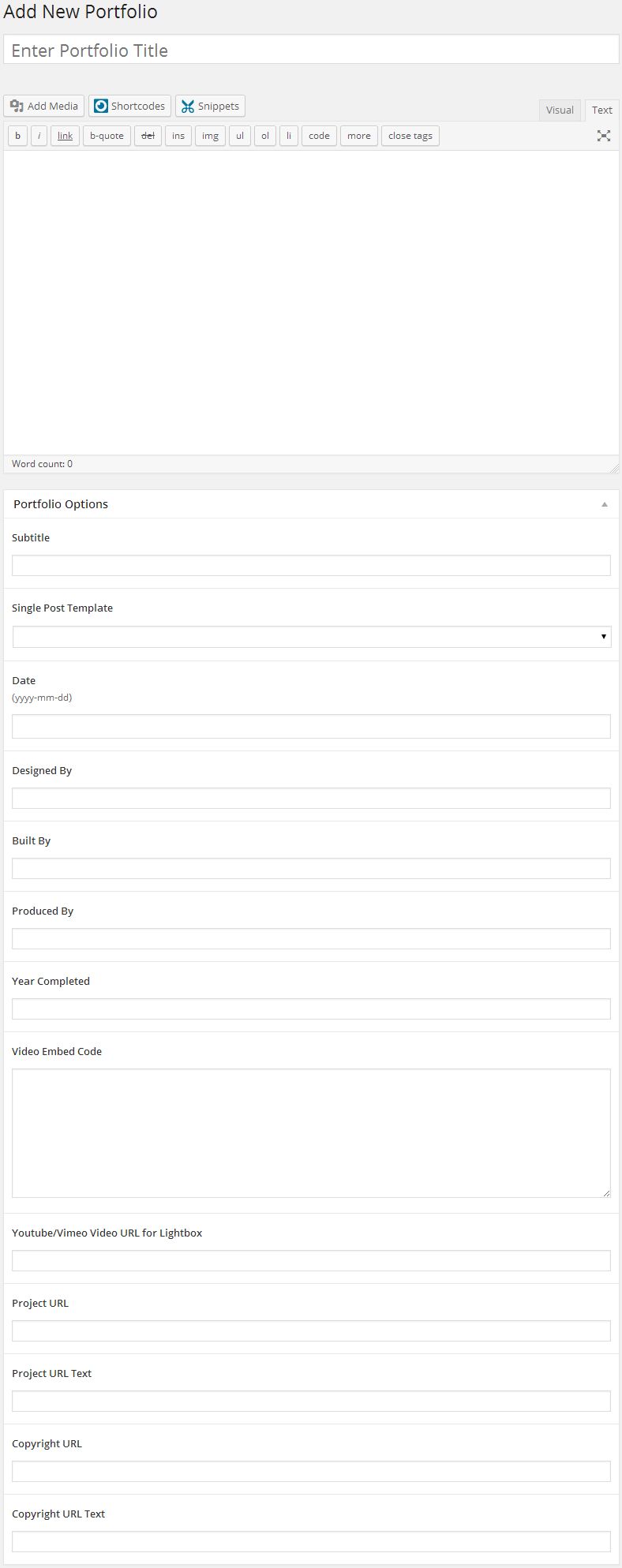
Portfolio Options
Quotes Custom Post Type
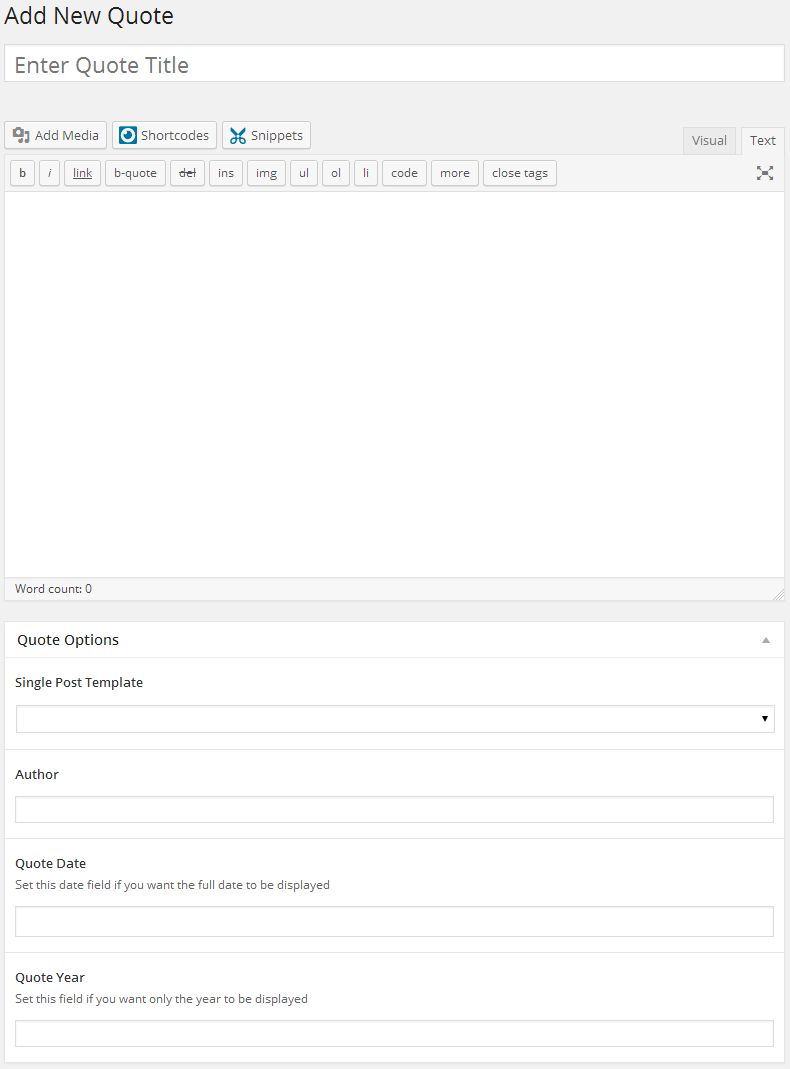
Quote Options
Recipes Custom Post Type
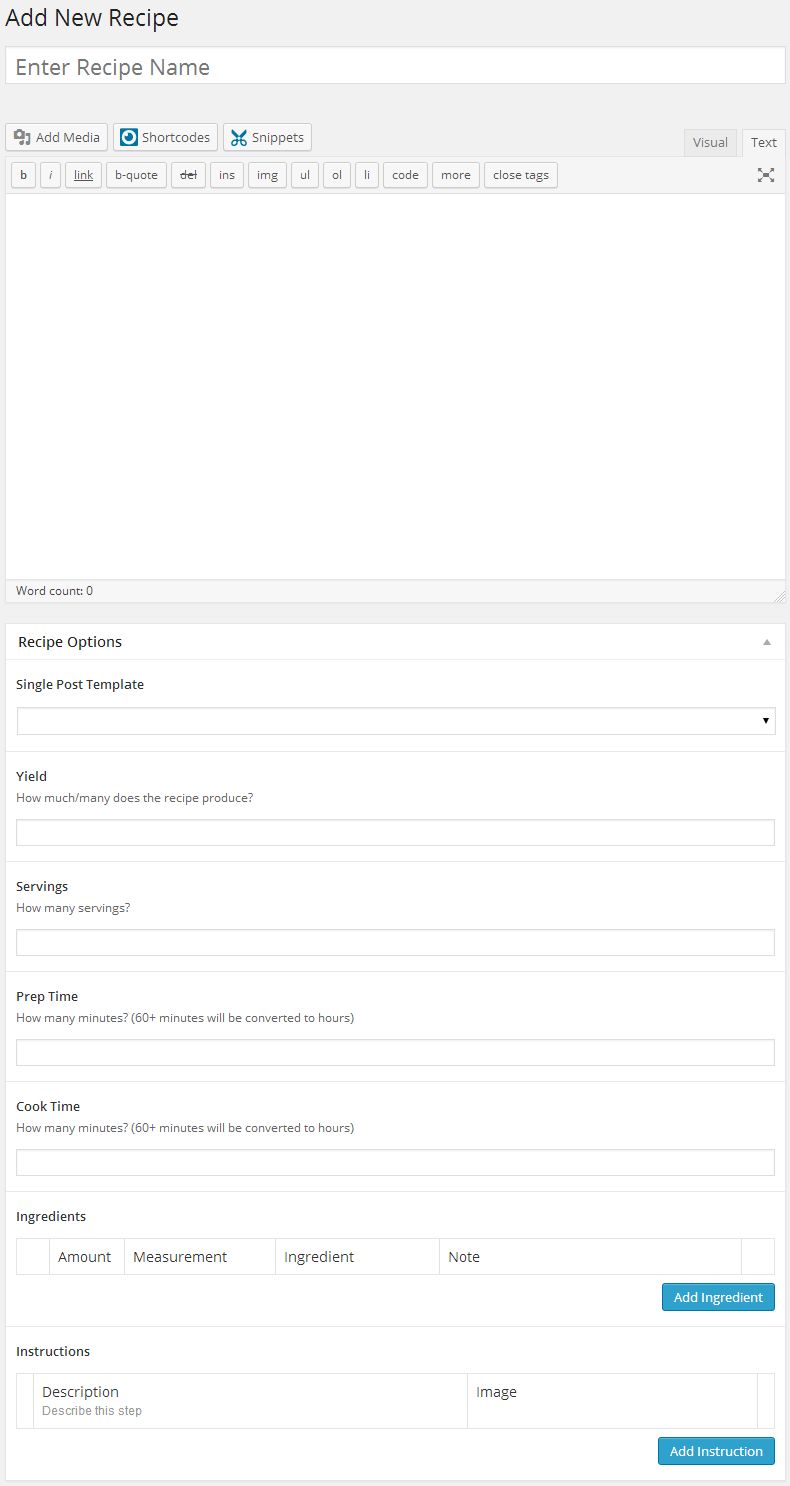
Quote Options
Snippets Custom Post Type
Enter your snippet into the content area, just as you would a page or post.
The Snippets custom post type does not have any metabox options.
Team Custom Post Type
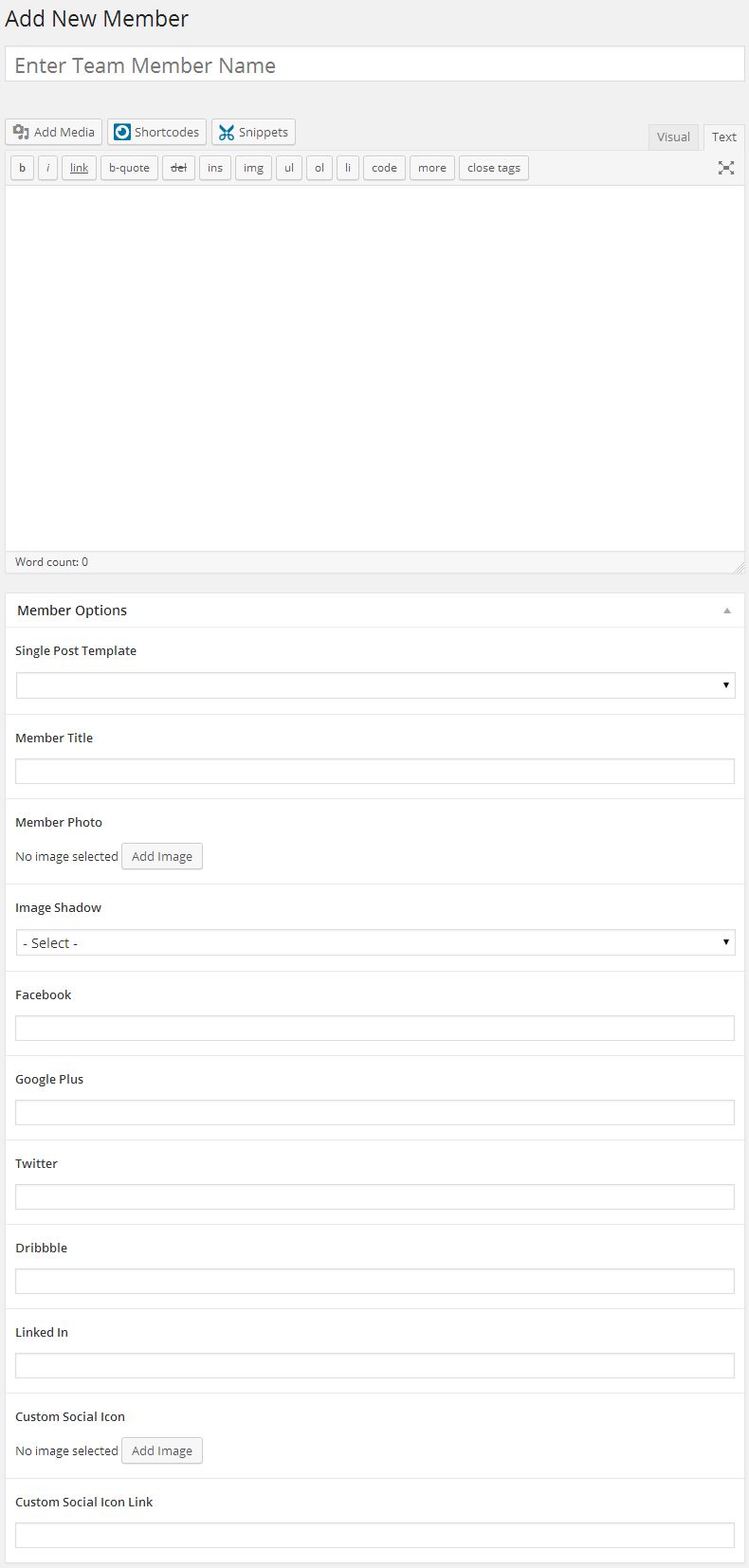
Member Options
Templates Custom Post Type
You can create templates that are used for the single post page or you can create templates that are for showing items in a list. When showing your items in a list, you get to chose from a one, two, three, four, or six column layout. This gives you a lot of flexibility to build your templates the way you want. Have fun, be creative and share your templates with us if you would like.
Example of template being used
Template Options
Testimonials Custom Post Type
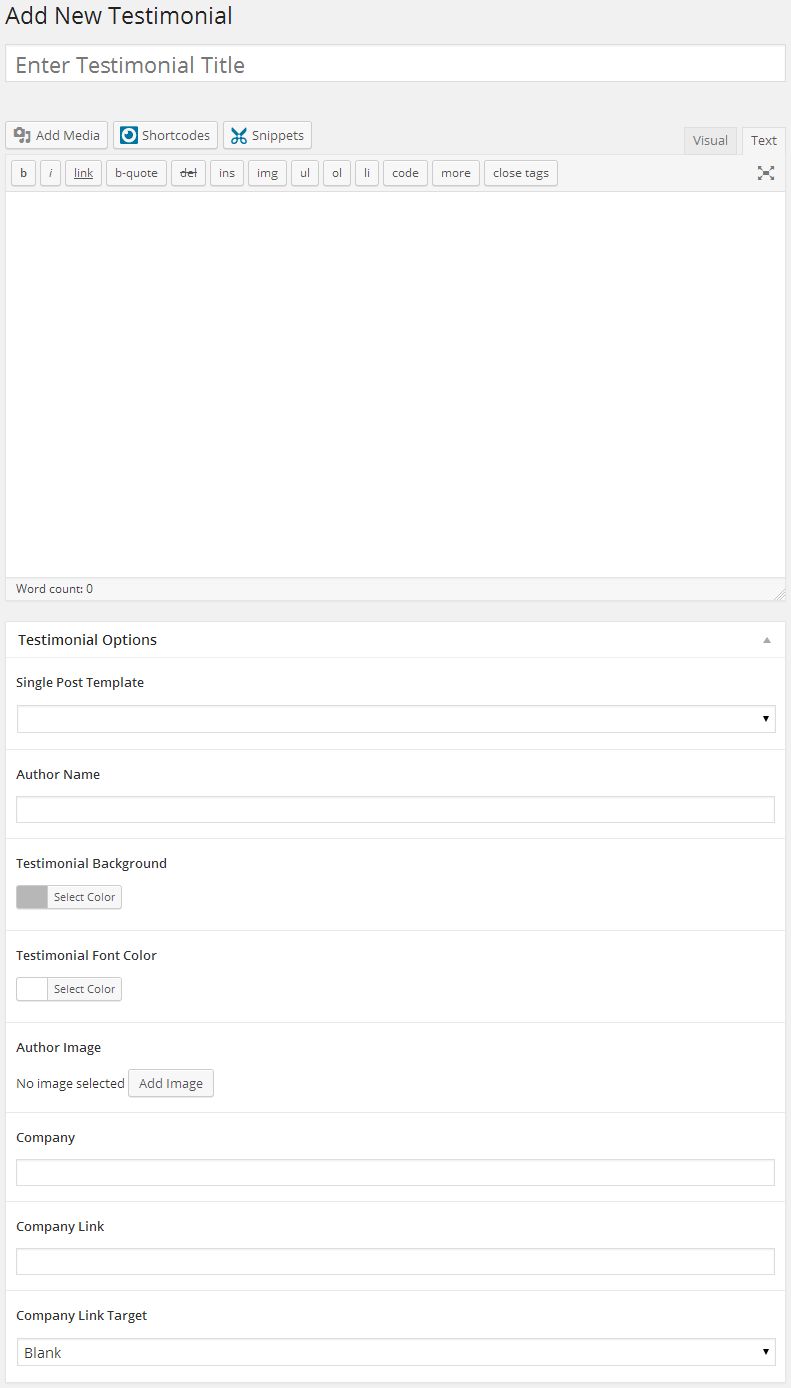
Testimonial Options
Input a new name for your page, then find the Page Attributes box on right side.
Set your Parent page. It’s usually set to No Parent.
Set your page template from the Template dropdown list. See list of page templates below.
Content for your page goes in the editing field, use the Visual or Text editor. Page content is mainly built using Shortcodes. See the Shortcodes section for how to use them.
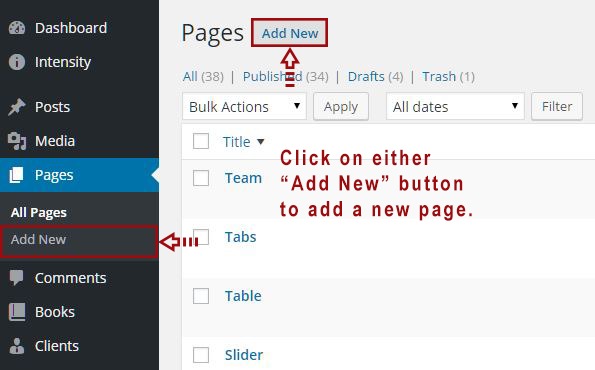
Page Sections
Snippets – Access the Snippets dialog to insert snippets.
Page Attributes – Set your Parent page and Template. The Parent is usually set to “(no parent)” and the template is normally set to “Default Template”.
Post Options – This section allows you to control much of the layout of your page. Set portions of your page pertaining to layout, header, footer, title bar, sidebars, background, and post/page specific code.
Featured Media – Add a gallery to your page and set the options or add audio or video for the featured item as well. These settings are typically used on Posts, but can also be used on Pages.
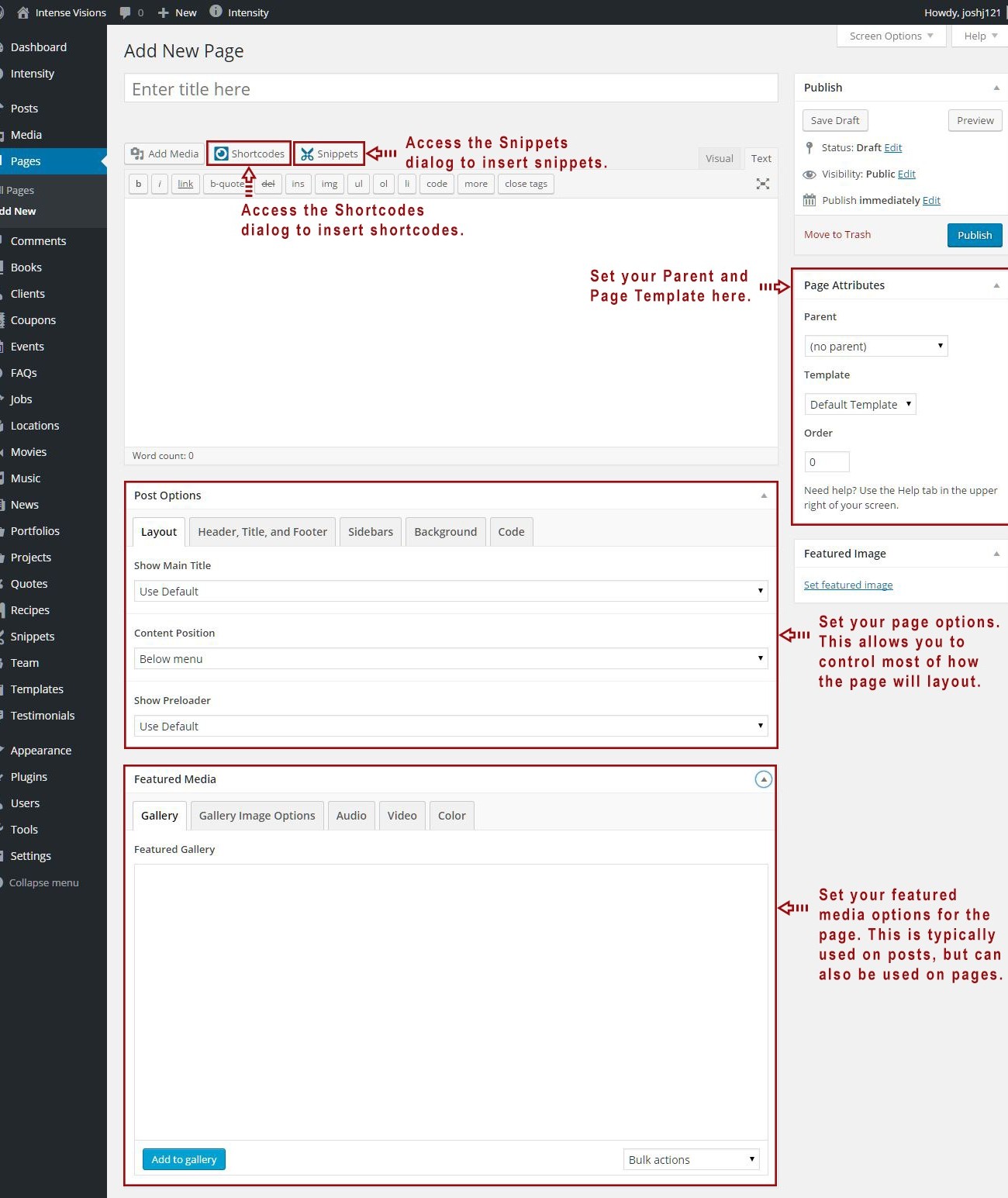
Post Options Metabox
The Post Options metabox controls a number of aspects on your page/post. You can control the layout, header, title, footer, sidebars, background, and any post/page specific code.Header
Title
Body
Footer
Sidebars
Background
Comments
Extras
Featured Media Metabox
The Featured Media metabox allows you to set the featured media to be shown on the page and also how the media is shown.Gallery
Gallery Image Options
Audio
Video
Color
Performance and Site Optimization
If your site is not performing as fast as you’d like, there could be a few different issues. Our live demo is a representation of how fast your site should be. Results will vary depending on the items below. This post will outline the common issues that can slow your site down and the ways that you can correct these common issues.Important Note Before Getting Started: While you are building and developing your site, it’s advised to turn off caching. This is especially important if you are working with our support team. It’s possible to implement a change, and not have it take place because a cached version of the page or various resources are loading instead of the latest version.
Plugins – Plugin management is a very crucial piece of making sure that your site continues to run smoothly. You have to make sure that you keep your plugins up-to-date, but even that isn’t enough to guarantee peak performance. Each plugin can hinder the performance of your site. The more plugins you have, the slower your site may perform. It is best to keep your plugin list down to only the plugins that you are using. If you have plugins that are not activated and you don’t use them, go ahead and remove them as well. Anything that you can do to cut down the amount of space used and the potential conflicts between your theme and/or plugins, the better off you will be. Images/Content – Image compression is a crucial part of making your site load fast, but most people forget it and then are left wondering why their site loading speed is very slow. Images are one of the biggest part of your website. An image heavy site can still be quick if you watch out for some of the following:First of all always try to use JPEG or GIF images rather than PNG images since they are smaller in size. A lot of people upload their big images and WordPress will crop them in all the different thumbnail sizes and you will insert the image with the proper thumbnail size in the post and then people think it’s all set. This is not the case. If you upload a big, uncompressed image, WordPress will crop that large image, which will make images that are still uncompressed. It is best to compress your images first, then upload them to WordPress, so that all of the cropped images will be compressed and optimized.
There are different ways on how to compress images. Below are a couple of services and WordPress plugins you can use to optimize your images for decreased loading times.
- WP Smush Pro is a cloud based image optimizing plugin, that works on a API based system, that allows you with a few clicks to send your images for optimizing and also includes lossless compression with its Super Smush option.
- Kraken.io is another cloud based image optimization service, the main difference being, they not only have a WordPress plugin you can use, but you can also optimize images directly on their website, rather than using the plugin.
- Ewww Image Optimizer is another cloud based image optiomization plugin, that also allows you to optimize and compress images to decrease load times.
If you are creating images in Photoshop a common thing that people do wrong is save the images without using the option “Save for Web & Devices”. This is very crucial since you can set the compression and quality rate and other things which will lead to a smaller image size. Other image editing programs can do the same so always look in the documentation for image compression.
Server/Hosting – Sometimes slow speed can be the result of your hosting service. Some hosting services use shared hosting which can have an effect on speed. This is a very broad topic but the general idea is that some hosts are better than others. Here are a couple that we suggest looking into if you are experiencing slow speed time from your host.- DreamHost has an easy 1-click WordPress install that makes it dead simple to set up a new site. DreamHost is a Los Angeles based hosting provider that has been hosting sites since 1997.
- Bluehost comes highly recommended within the blogging world. It also has an easy 1-click WordPress install. Bluehost is one of the top 20 hosting companies and host over 2 millions websites.
- WP Engine provides best-in-class customer service on top of innovation-driven technology. They have over 30,000 customers in 120 countries. WP Engine makes managed WordPress hosting simple, scalable, and secure.
* Disclosure: the three links provided above are affiliate links. They won’t cost you anything additional and, if you use them and decide to purchase, we will earn a small commission.
With all of that said, we highly recommend using the W3TC plugin to optimize your site’s speed. All premium themes should be using a cache plugin and W3TC is the best one to use.
Consider Using gZIP Compression – gZIP compression is bundling (zipping) pages on a web server before the page is sent to the visitor. This saves bandwidth and therefore increases the loading speed of the page significantly. The visitors’ web browser then automatically unzips the pages. This compressing and unzipping only takes a fraction of a second.The W3 Total Cache plugin offers gZIP compression as an option, so if you are using the W3 Total Cache plugin, you can easily enable the gZIP option. If you would prefer to control gZIP on your own, without the use of the W3 Total Cache plugin, you can easily accomplish this by adding just a few lines of code to your .htaccess file. The easiest way to enable the gZIP compression for your images, CSS and JS files is to add these lines to your .htaccess file in the root WordPress folder:
## ENABLE GZIP COMPRESSION ##
AddOutputFilterByType DEFLATE text/plain
AddOutputFilterByType DEFLATE text/html
AddOutputFilterByType DEFLATE text/xml
AddOutputFilterByType DEFLATE text/css
AddOutputFilterByType DEFLATE application/xml
AddOutputFilterByType DEFLATE application/xhtml+xml
AddOutputFilterByType DEFLATE application/rss+xml
AddOutputFilterByType DEFLATE application/javascript
AddOutputFilterByType DEFLATE application/x-javascript
## ENABLE GZIP COMPRESSION ##- Cloudflare: We use Cloudflare on our theme and plugin demo sites. It works great, integrates nicely with W3 Total Cache, and best of all it’s free.
- MaxCDN: MaxCDN is a great option and has very reasonable pricing for the services they provide.
Hooks allow you to ‘hook’ into the rest of WordPress. There are two types of hooks in WordPress: actions and filters. Actions allow you to run your own code during execution. Filters let you alter content created by WordPress. Intensity defines actions and filters that can be used in your plugins or themes to hook into its functionality.
You can read more about hooks here: https://codex.wordpress.org/Plugin_API
Actions
| intensity_before_header | Executed before the header is displayed |
| intensity_after_header | Executed after the header is displayed |
| intensity_before_opening_main | Executed before the main content body |
| intensity_after_opening_main | Executed after the main content body |
| intensity_before_closing_main | Executed before closing of the main content body |
| intensity_after_closing_main | Executed after closing of the main content body |
| intensity_after_closing_body | Executed after closing of the content body |
| intensity_before_the_content_begin | Executed before the page/post content begins |
| intensity_after_the_content_begin | Executed after the page/post content begins |
| intensity_before_the_content_end | Executed before the page/post content ends |
| intensity_after_the_content_end | Executed after the page/post content ends |
Filters
| intensity_viewport_meta | Applies to the viewport meta |
WordPress child themes allow you to apply custom changes to your site without the worry of your changes being deleted when the parent theme is updated. Continue reading if you would like to learn how to use or create a child theme.
While child themes are a great way to apply custom changes to Intensity (the parent theme), they are generally used to customize the core code of the parent theme. We cannot provide support for customizations of this kind, as they fall outside our scope of support and we will be unable to assist you with issues that may arise.
What Is A Child Theme
A child theme is a theme that inherits the functionality and styling of another theme, called the parent theme. Child themes are the recommended way of modifying an existing theme.Why Use A Child Theme
There are a few reasons why you would want to use a child theme:- If you modify a theme directly and it is updated, then your modifications may be lost. By using a child theme you will ensure that your modifications are preserved.
- Using a child theme can speed up development time.
- Using a child theme is a great way to learn about WordPress theme development.
Installing The Intensity Child Theme
You cannot install a child theme without the parent theme being installed, so make sure to install Intensity prior to installing the Intensity Child Theme. Open up your WordPress dashboard/admin, i.e (yourdomain.com/wp-admin) and login. On the right hand side click on “Appearance”, you should now have what looks like the screenshot below. As you can see in the screenshot below, there are a couple of “Add new theme” buttons, click either one.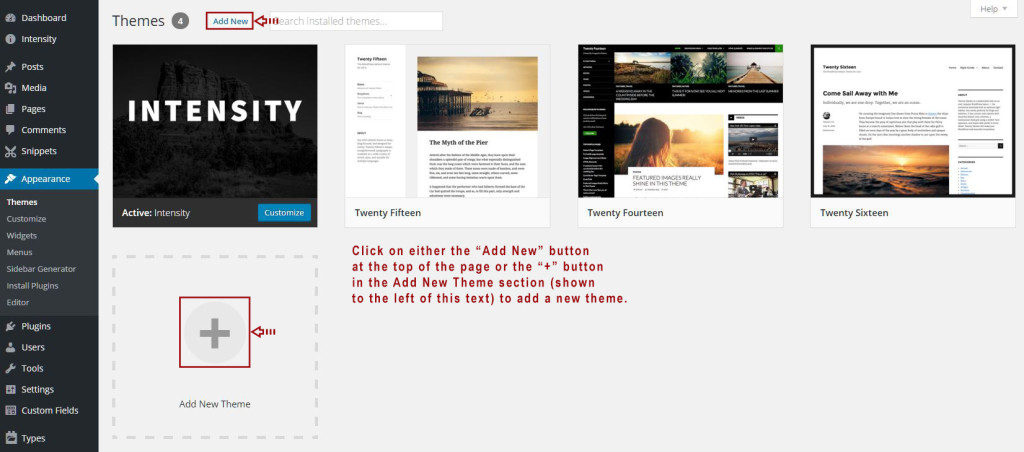 When you get to the screen that looks like the screenshot below, click on the “Upload Theme” button.
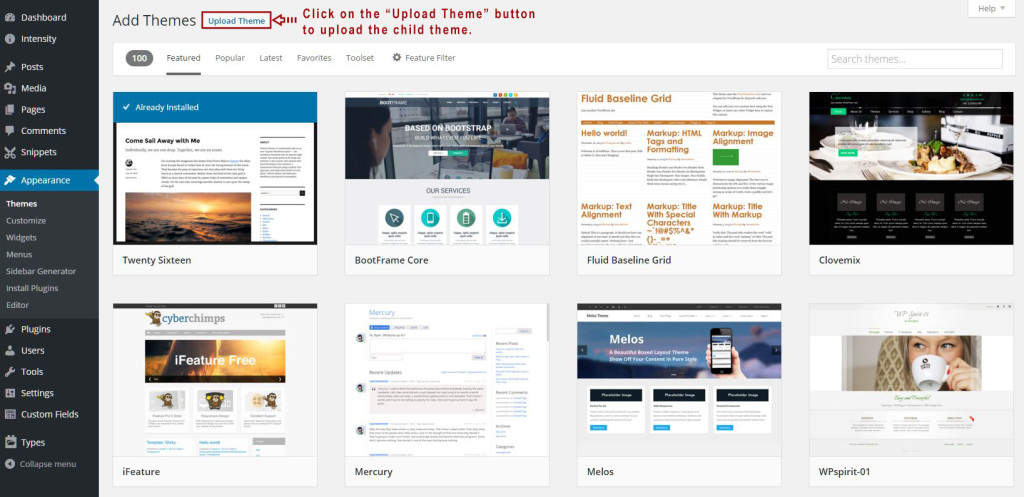 When you get to the screen that looks like the screenshot below, click on the “Browse” button and find the Intensity Child Theme that you want to install. The download from ThemeForest includes a number of child themes for Intensity that you can install.
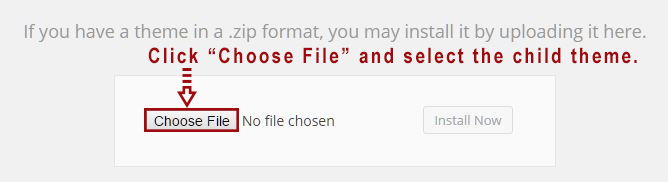 Once you have selected the child theme that you want to install and the name is shown next to the “Browse” button, go ahead and click “Install” to start the installation of the child theme.
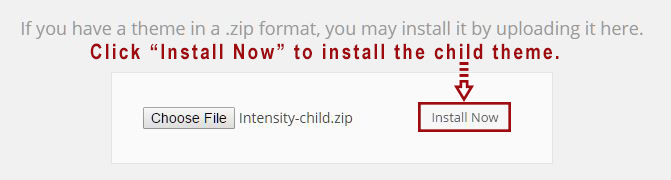 When you get to the screen that looks like the screenshot below, the child theme has successfully been installed and now all you have to do is to click the “Activate” link to activate the child theme.
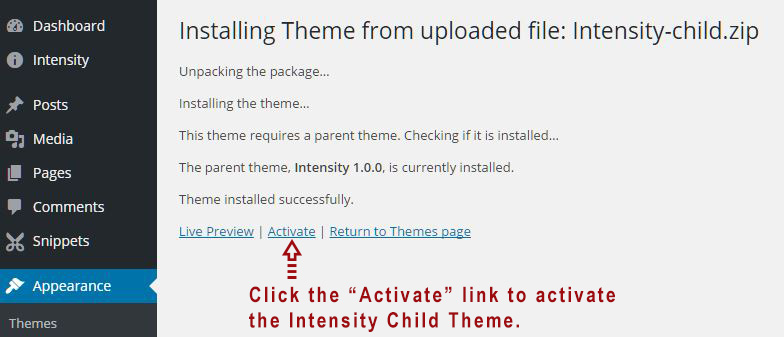 Congratulations, you have successfully installed the Intensity child theme.
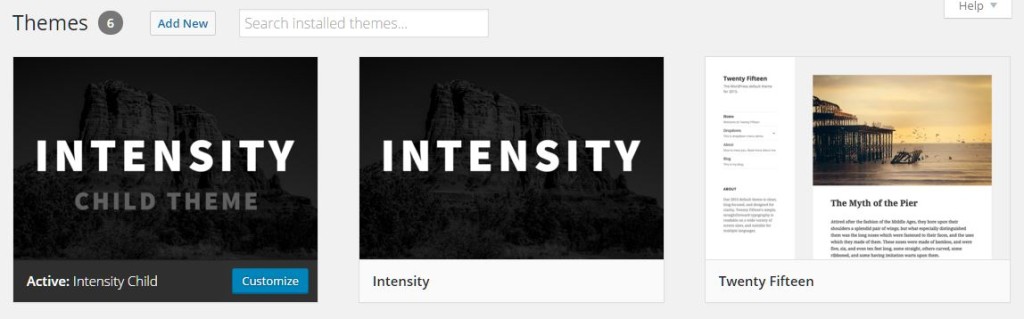
In the image below, the “Intensity Child Theme” is the current “Active” theme. The Parent theme, “Intensity”, is found just to the right of the child theme image. If you are looking to modify the core code of the Intensity theme, use the Intensity Child Theme to make your modifications.
Useful Documentation On Child Themes
If you’d like to learn more about child themes, check out the links below.WordPress Codex on Child Themes
How To Create A WP Child Theme video by WPBeginner.com
There are thousands of default icons to choose from. Intense includes over 4,500 icons that are all in zip files. Some of our demos include their own additional icon zip files. The current list of available icons can be seen by looking at the Intense plugin site, on the Icon shortcode page.
Adding Your Own Icons
You can add your own icons by creating an intense_icons folder within Intensity or a child theme. Inside of that folder, create another folder and place your icons inside of it. Here is an example of what the folder structure should look like.theme/
intense_icons/
my-icons/
myicon.svg
anothericon.svgIf the icons are designed to be one color, you may need to manually remove the fill color from the individual SVG files. This will let you set the color using the shortcode. For multicolored icons, this isn’t necessary since you will want the fill color of the icon.
There is also a pack.json file that you can put in the folder with the icons to add more details about the icons. This isn’t necessary but, if you are curious, look at the example pack.json code below. This pack.json file is from the Font Awesome icon folder.
{
    “title”: “Font Awesome”,
    “name”: “font-awesome”,
    “author”: “Dave Gandy”,
    “license”: {
        “type”: “SIL OFL 1.1”,
        “url”: “http:\/\/scripts.sil.org\/OFL”
    },
    “website”: “http:\/\/fortawesome.github.io\/Font-Awesome\/”,
    “source”: “http:\/\/fortawesome.github.io\/Font-Awesome\/”
}